GETTING STARTED
Your first idea.
Ready to share.
A complete path from a new workspace to a reviewed post—and a clear publishing status. Follow along at your own pace.
You will need a photo or video you have permission to use and access to the social profile you want to connect. You can draft before connecting.
SEE THE WHOLE FLOW
One minute to get oriented.
See how to plan, create, and review your social content in a quick walkthrough.
Download video · Read the video transcript · Screenshots below open at full size.
01 / A PLACE TO BEGIN
Create your workspace
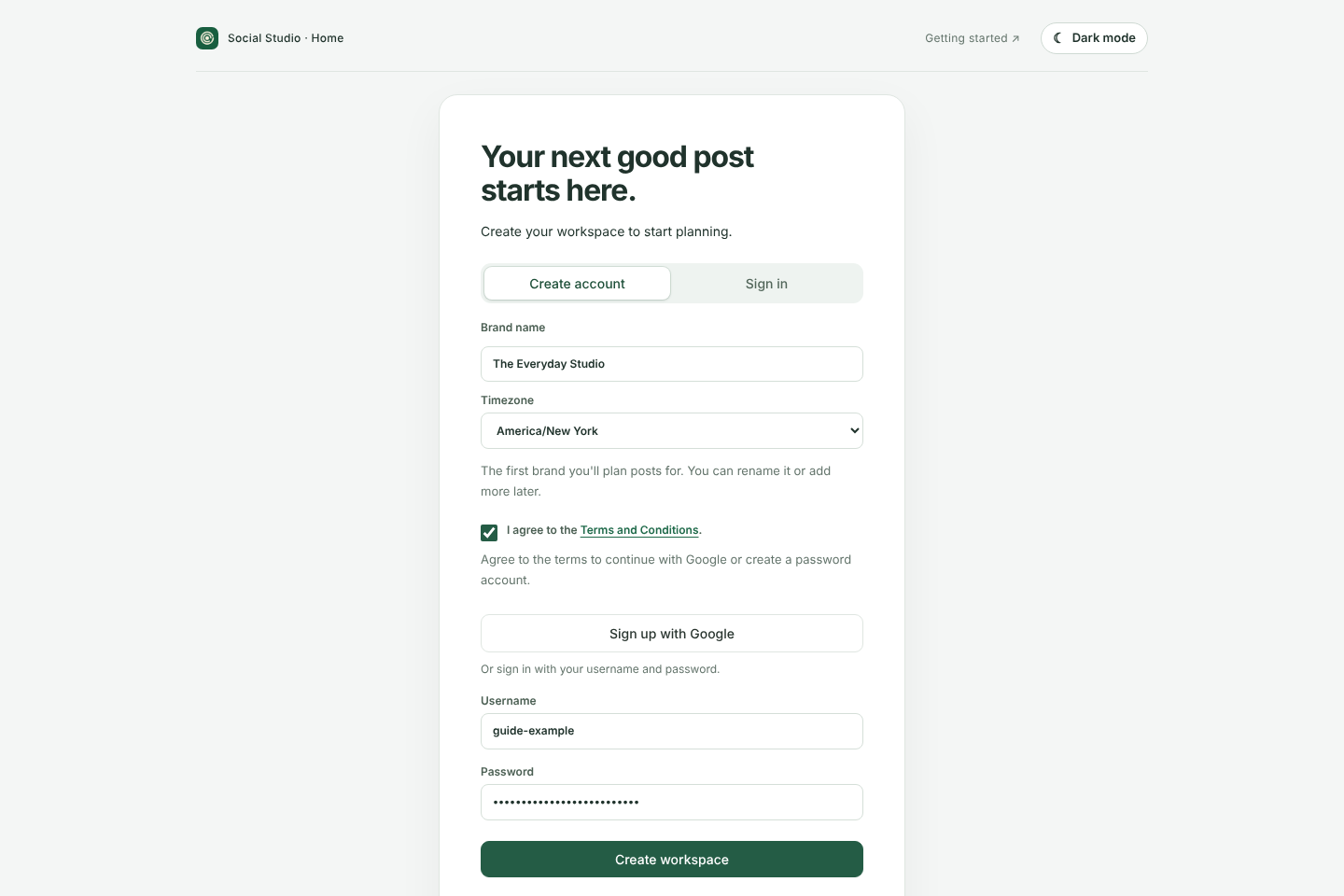
Open Social Studio and choose Create account. Name your first brand and pick its timezone, read and accept the Terms and Conditions, then use an available sign-up option. For a password account, choose a username and a password of at least 12 characters.
Already have an account? Choose Sign in. If you use a password, save your recovery codes privately when prompted; you can manage them under Account security.
02 / MAKE IT YOURS
Set up your brand
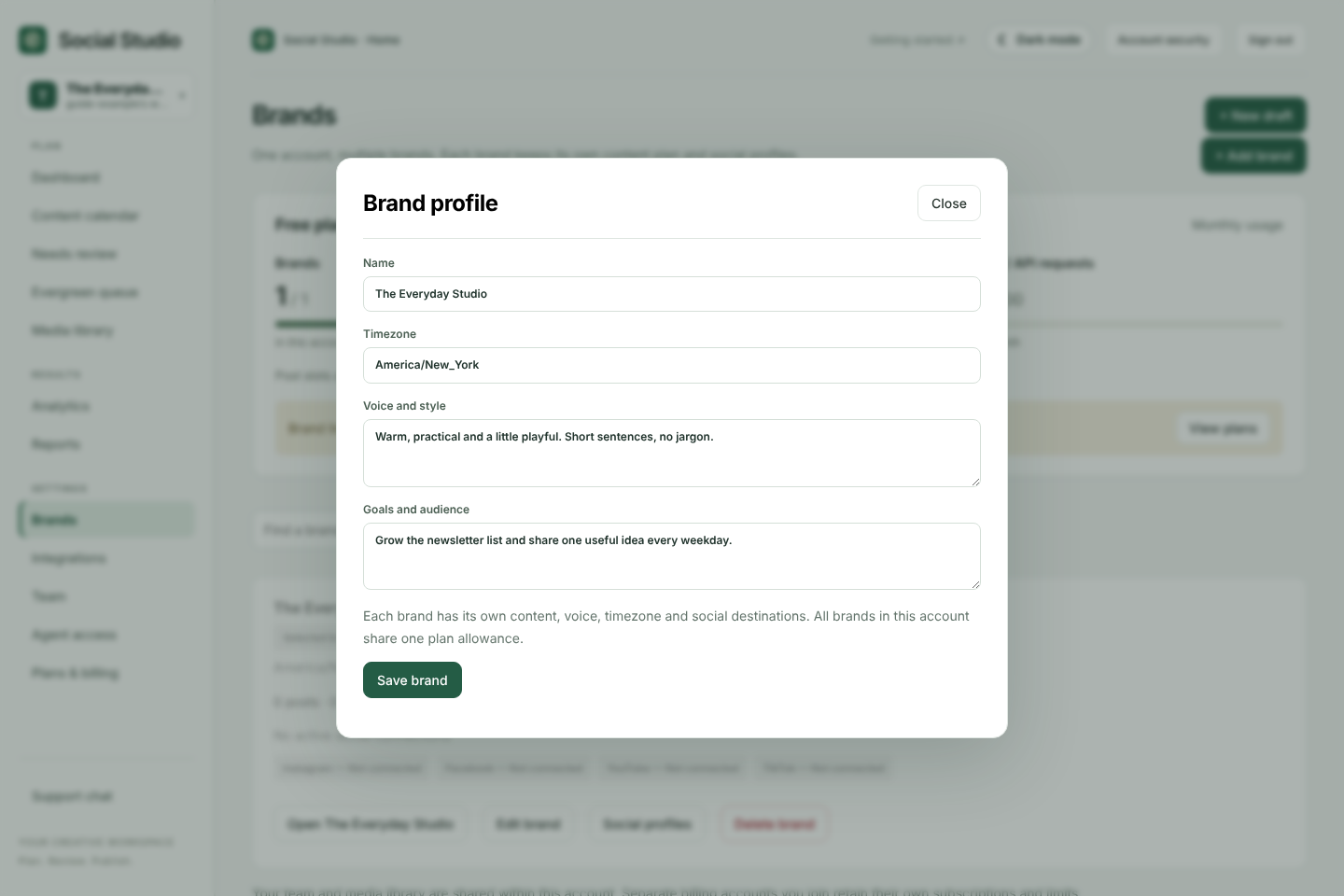
Choose Brands → Edit brand to personalize your first brand. Set its name, timezone, voice and goals. Use Add brand for another brand when your plan allows it.
The brand timezone controls planned post times. Switch brand or workspace from the brand switcher at the top of the sidebar; each brand has its own calendar and social connections.
03 / CHOOSE THE RIGHT DESTINATION
Connect social profiles
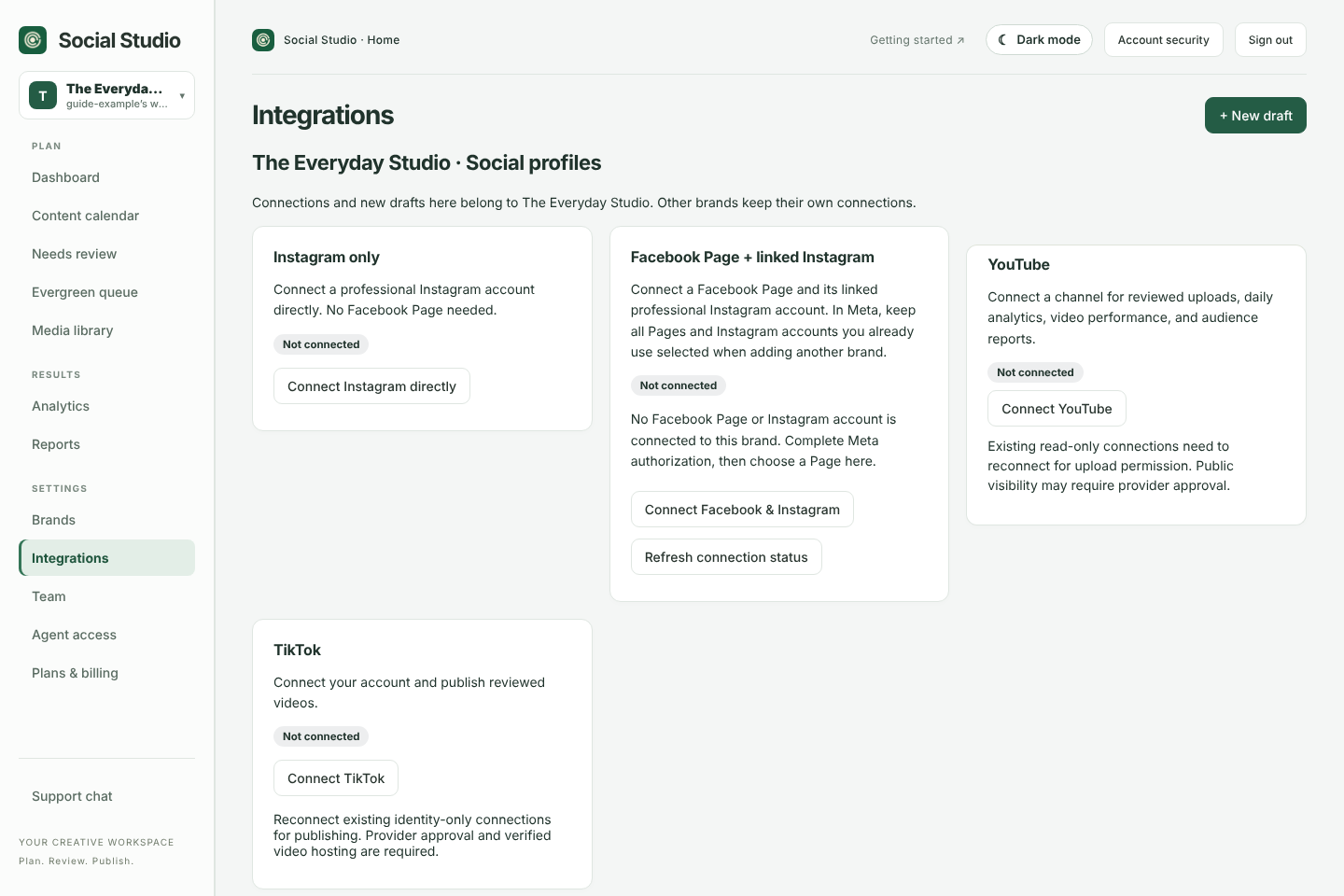
Open the brand’s Social profiles or choose Integrations. Follow the connection prompts for an available network, authorize access with the provider, and choose the intended Page, profile or channel.
Return to Social Studio and verify the displayed account identity. A listed integration or a planned destination does not mean it is connected. Networks listed under Also planned cannot publish yet; press Notify me to hear when they can. You can still prepare drafts for them.
04 / KEEP THE MATERIAL TOGETHER
Add your media
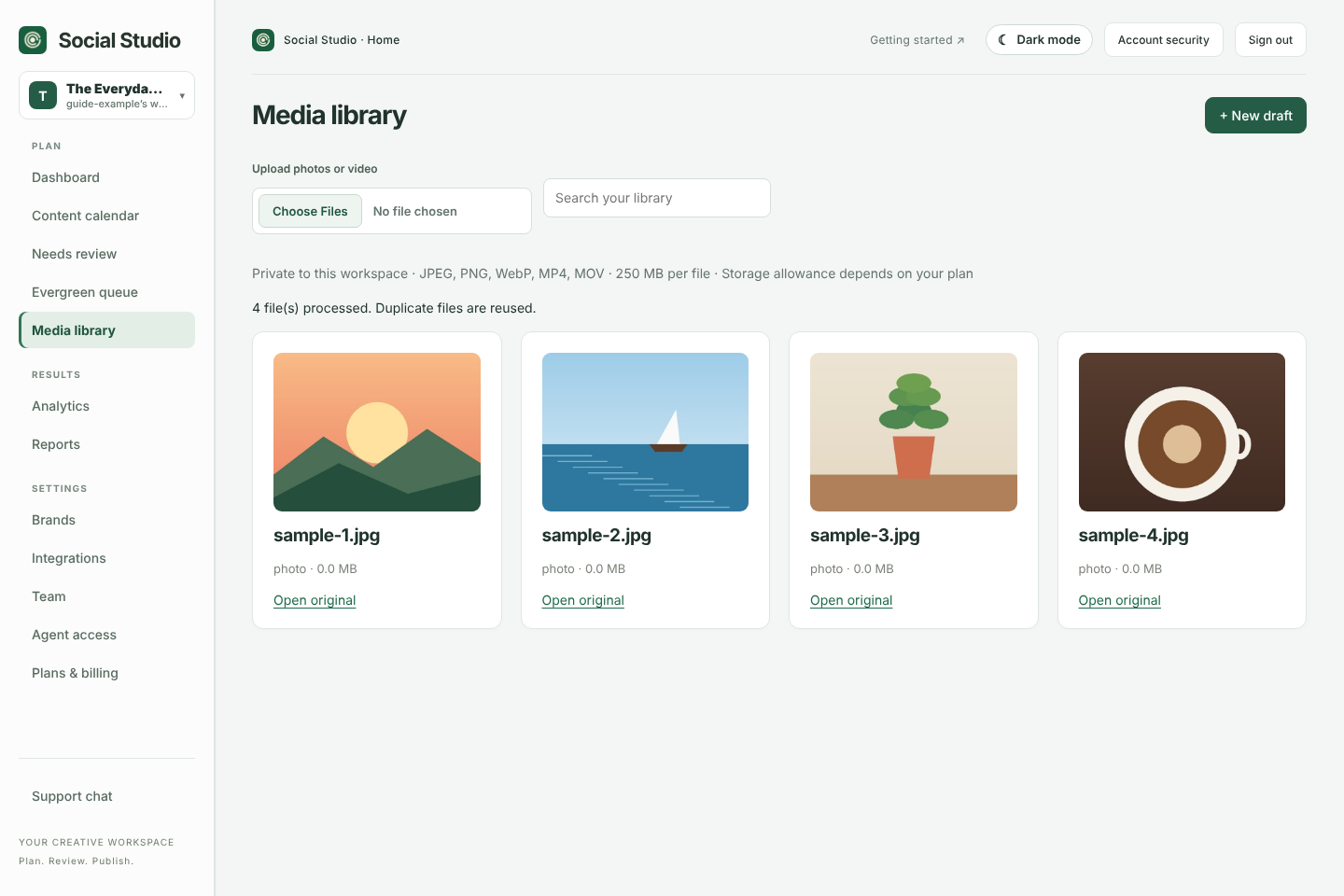
Choose Media library → Upload photos or video. Supported library files include JPEG, PNG, WebP, MP4 and MOV. Upload limits and storage allowances appear in the library.
You can also upload from inside a draft. Library support and publishing support differ: check the destination’s format requirements before you publish. Only upload media and audio you have permission to use.
05 / GIVE YOUR IDEA A SHAPE
Make a draft
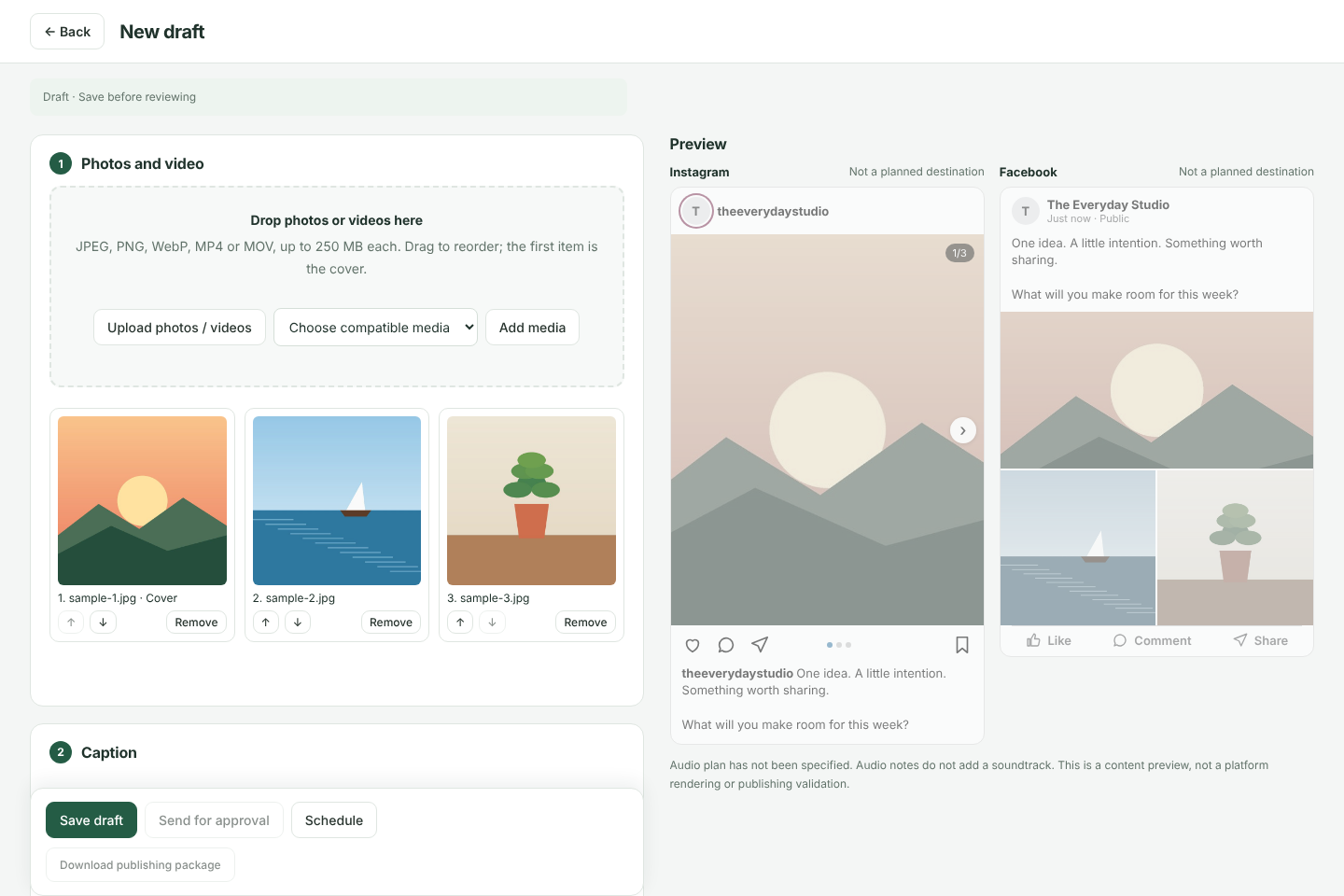
Choose + New draft to open the composer. Start with your photos or video: add them from the library, put the cover first and adjust the order. Then add a title, select a format, write your caption and choose your connected destinations.
For a future post, turn on Plan a date and time and check the timezone and date summary. Add any audio notes, then choose Save draft (or Save changes for an existing draft).
06 / GIVE THE DETAILS A FINAL LOOK
Review the saved version
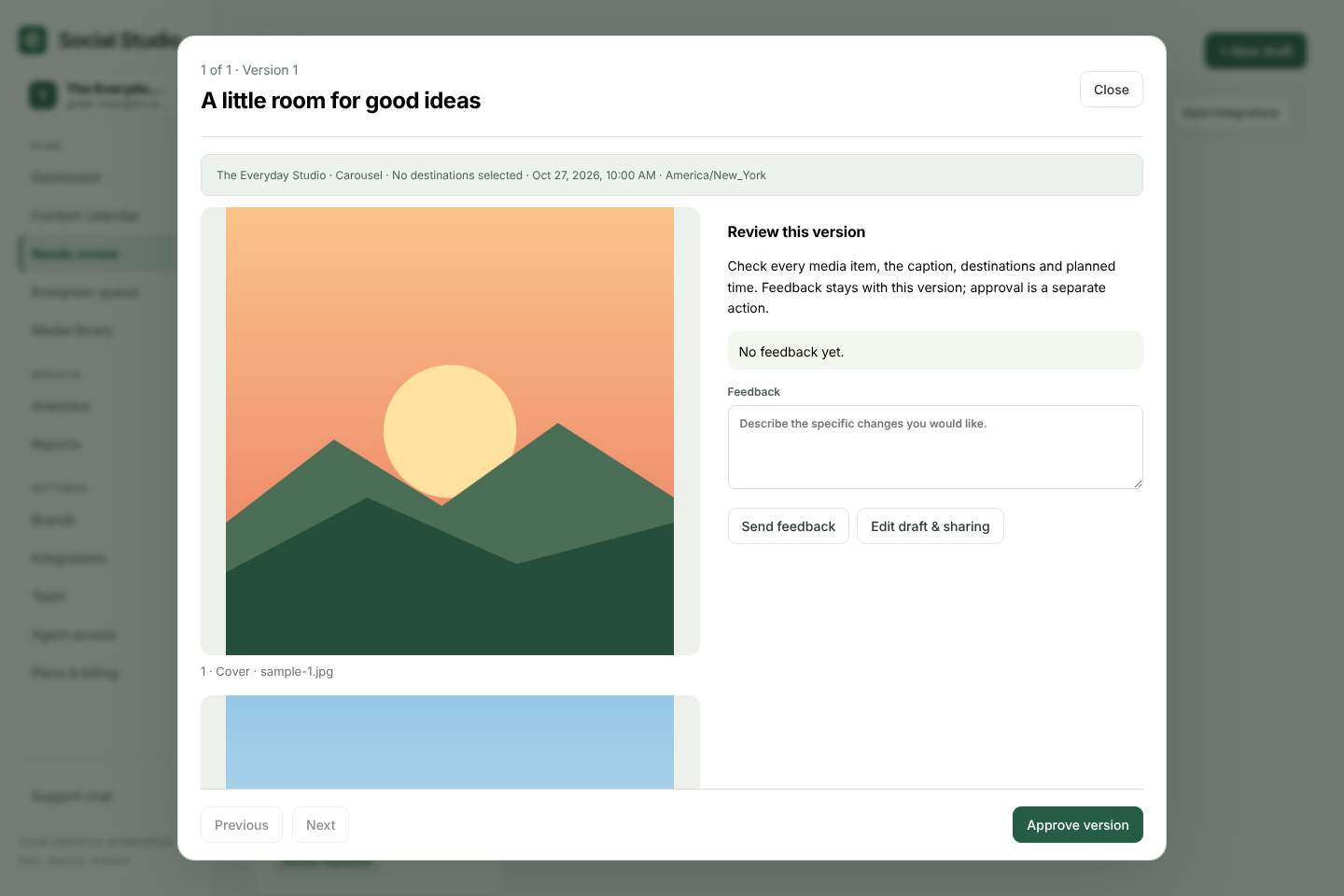
In the saved draft, choose Send for approval. Then open Needs review and select the post. Comments on the version live under Review discussion.
Check every media item, the full caption, destination, audio and planned time. Send specific feedback if changes are needed. An owner or reviewer can choose Approve version; working solo, you can review your own post.
Approval applies to that exact saved version. Editing it requires a fresh approval. Where your plan supports it, Team and private client review links let others help.
07 / FROM APPROVED TO CONFIRMED
Publish—and check what happened
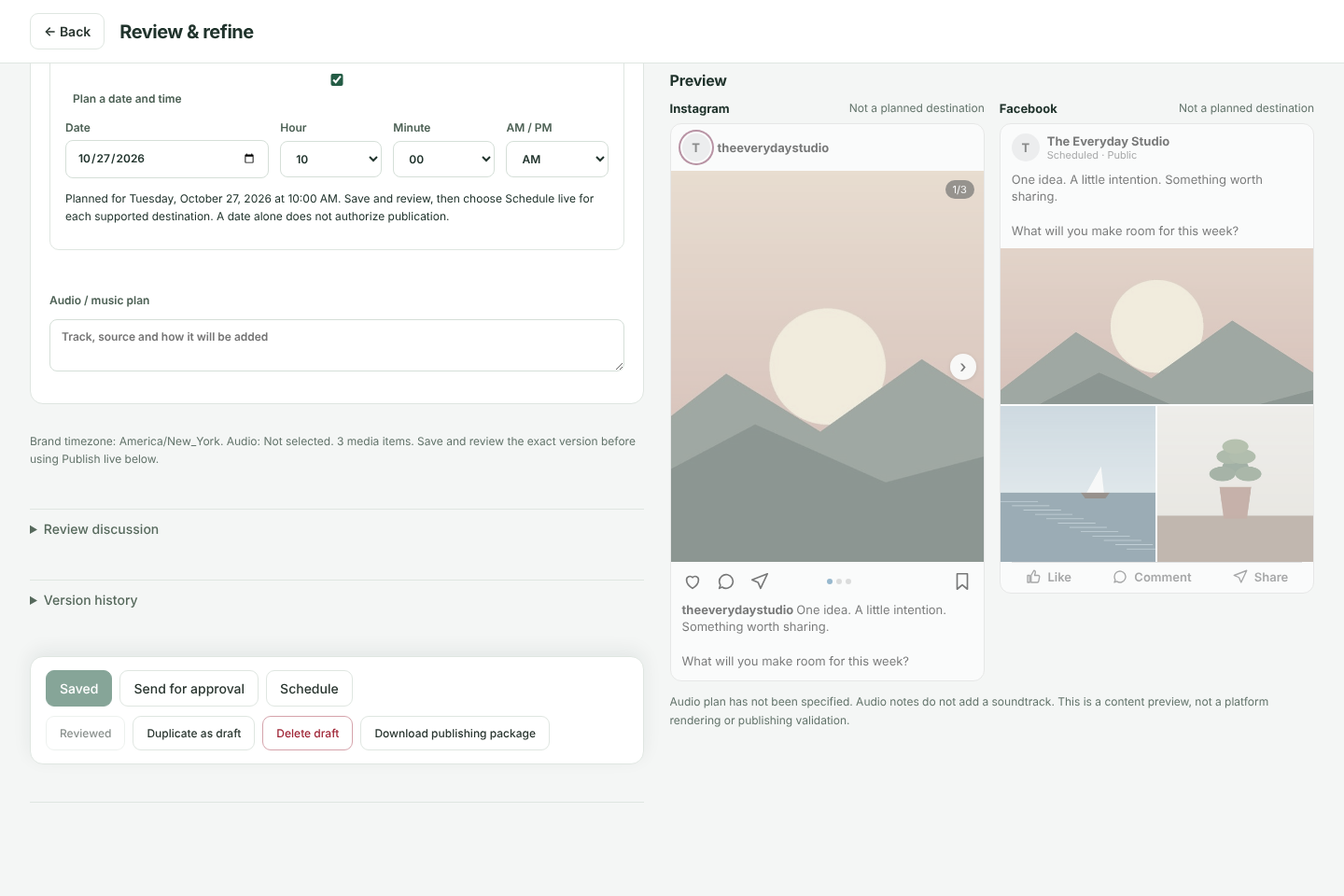
Reopen the approved post and find its publishing controls. Resolve any connection, format or approval messages. For supported Facebook or Instagram posts, choose Publish now or, with a future saved date, Schedule live for each destination. Read the destination and time in the confirmation before accepting.
YouTube uses its own video controls and supports a scheduled public release. TikTok uses its own consent and visibility controls and publishes immediately; a planned calendar date does not schedule TikTok. Available actions and media requirements are shown in your workspace.
Read the result, not just the calendar
- Scheduled: a publication is queued. It has not been published yet.
- Publishing / Awaiting confirmation: processing is underway. Wait and check the status.
- Published: open the returned post link and verify the result on the social network.
- Needs attention / Failed: follow the message. If the outcome is uncertain, verify on the network before retrying to avoid a duplicate.
If direct publishing is unavailable for your destination or format, use Download publishing package in the saved draft and finish in the network’s own app. For a reviewed Instagram carousel that needs native music, Finish in Instagram gives you the ordered photos, caption and audio notes to complete it there. A download does not publish anything.
KEEP GOING
Your next post starts here.
Open Content calendar to revisit your plan. For help, use Support chat in the signed-in sidebar; replies appear there when support responds.
Open your workspace →Video transcript
- Create an account or sign in. Accept the terms for a new account and save your recovery codes privately.
- Open Brands and edit your first brand. Set its name, timezone, voice and audience.
- Open Integrations. Connect an available profile and verify the destination identity. This example has no live accounts.
- Upload your photo or video in Media library. Use media you have permission to publish.
- Create a draft. Add the caption and media, choose connected destinations and optionally plan a time. Save the version.
- Request review, then open Needs review. Check the saved details and approve the exact version. Approval does not publish.
- Open the approved post. Connect the destination and resolve any publishing requirements. Choose Publish now or Schedule live where supported and confirm. This demonstration stops before sending.
- Check the publication status. Scheduled means queued; Published should have a verified post link. Use a publishing package for manual posting when needed.
Explore Social Studio
Features and platform capabilities · Plans and pricing · Client approvals · About and support